rmse <- 1.2345678Appendix C — Markdown and R Markdown
Markdown allows creating formatted documents using a plain text formatting syntax. It is widely used across the web for writing content due to its simplicity and readability. Created in 2004, it uses simple, intuitive characters—like asterisks for bold or hashes for headers—to add structure, which is then parsed into HTML for web publishing, document creation, or note-taking. It is widely favored for its portability and speed. You likely have already used Markdown in various platforms, such as GitHub, Stack Overflow, or blogging sites. Simple formatting examples include:
**bold text**for bold text*italic text*for italic text# Header 1for a top-level header## Header 2for a second-level header- List itemfor a bullet point
and so on. There are many resources online to learn about Markdown syntax, for example, the Markdown Guide.
In R Markdown, the code is executed and the results are included in the document. This is a very powerful way of writing a document. If you change the code, the document is updated automatically. This is very useful if you need to update a document regularly. For example, if you need to update a report every month with the latest data. For larger documents that require considerable computation time, caching can be used to speed up the process (see Section D.2).
C.1 General syntax
See the R Markdown documentation on the Posit website for a detailed description of the R Markdown syntax. Here, we cover only a few important aspects that should you help write documents using R Markdown.
C.2 Code chunks
In order to embed R code in a document, we use the following syntax:
```{r chunk-name}
x = 123
```
The three backticks define a code block. The {r} indicates that we want to execute the content using R. Here, we also name the code chunk chunk-name. This is optional but useful, and required if you want to reference figures.
C.3 Chunk options
There are many options to control the behavior of a code chunk. In this document, we used a subset of them. Use the following to avoid displaying warnings and messages:
```{r chunk-name}
#| warning: FALSE
#| message: FALSE
...
```
However, only add these options if you understand what the displayed warning or message means and you are sure that you want to hide it.
C.4 Figures
Figures come with a large number of options. The ones we used in this document are:
fig.cap: Caption of the figure.fig.width: Width of the figure in inches.fig.height: Height of the figure in inches.fig.align: Alignment of the figure. Possible values areleft,rightandcenter.dev: Specifies the format of the figure. The default depends on the output format. For HTML, the default ispng; for PDF it ispdf. If you create a PDF file and your graph contains a large number of points, it will be better to use#| dev: pngto avoid a large file size and faster rendering of the PDF.
```{r fig-figure-demo}
#| fig.cap: "Figure caption shown below the plot"
#| fig.width: 4
#| fig.height: 4
#| fig.align: "center"
#| out.width: 75%
#| dev: "png"
plot(1:10)
```
This will create the following table with the caption shown below the plot. The width of the figure is 75% of the text width and figure is centered.
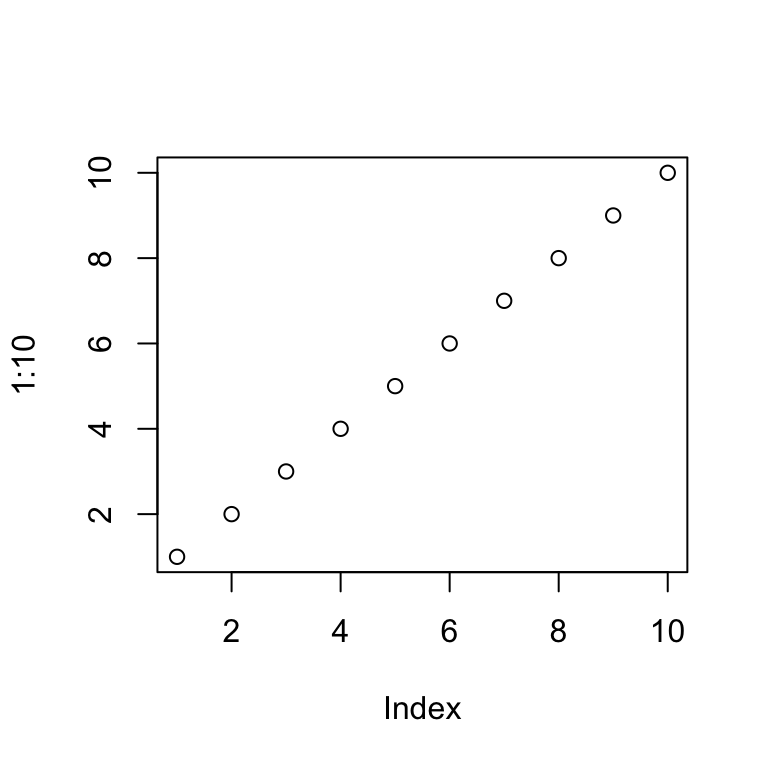
In markdown, we can reference the Figure using \@ref(fig:figure-demo). For example, Figure C.1 shows a plot of the numbers 1 to 10.
TipUseful to know
If your references don’t show up, check if you knit to either bookdown::pdf_document2 or bookdown::html_document2. The previous format for HTML documents (html_document) requires a different format for references.
Currently, knitting to PDF using markdown requires to have either out.width or fig.align specified. Otherwise, the resulting document will neither contain a figure caption nor will references work. You can also set fig.align as a global option:
knitr::opts_chunk$set(fig.align="center")C.5 Referencing R variables in text
Sometimes, you might want to reference calculation results in your text. If you add the results manually, but later on change the calculations, the actual results and the text will no longer reference the same values. It is possible to embed results in text using markdown to avoid this situation. Here is an example:
We can reference the variable rmse in the text using:
The RMSE value is
`r round(rmse, 3)`.
The command round(rmse, 3) will be executed and the result shown in the text:
The RMSE value is 1.235.
C.6 Troubleshooting
C.6.1 ! LaTeX Error: Unicode character ^^[ (U+001B)
When you get this error message while knitting to LaTeX, set warning and message to FALSE.
```{r figure-demo}
#| warning: FALSE
#| message: FALSE
... code that ouptuts a warning that causes knitting to fail ...
```
NoteFurther information
- Overview of R markdown options: https://www.rstudio.com/wp-content/uploads/2015/03/rmarkdown-reference.pdf